To configure address validation, enable Address autocompletion in the Settings sidebar of the checkout editor. Optionally, you can add our Experian Address Validation block to your Checkout or Thank you page for advanced address verification.
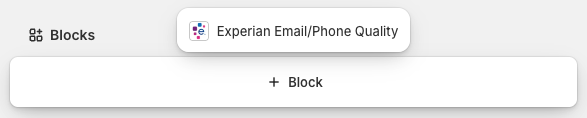
If you want to validate email addresses and mobile phone numbers, you can add our Experian Email and Phone Validation block to your Checkout page. With that enabled, you can also add our Experian Contact Quality block to your order details page to assess the quality of your customers' contact information and determine how reliable it is for order confirmations, delivery updates, and customer communications.
The following configuration is carried out in Shopify's checkout and accounts editor:
Navigate to the Settings > Checkout section of your Shopify admin.
In the Configurations section, click Customize on the checkout configuration that you want to customize to open the checkout and accounts editor.
There you can configure two features:
To access the Settings sidebar of the editor, click the gear icon on the left sidebar.
Scroll down to the Address autocompletion section to enable it and select Experian Data Validation.
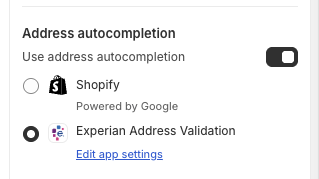
If you've enabled this optional setting in the app settings, you must also add the Experian Address Validation block to your Checkout or Thank you pages.
Select Checkout from the page selector in the top bar of the editor.
Within the Sections sidebar, scroll to the Main section of Checkout and click Add block.
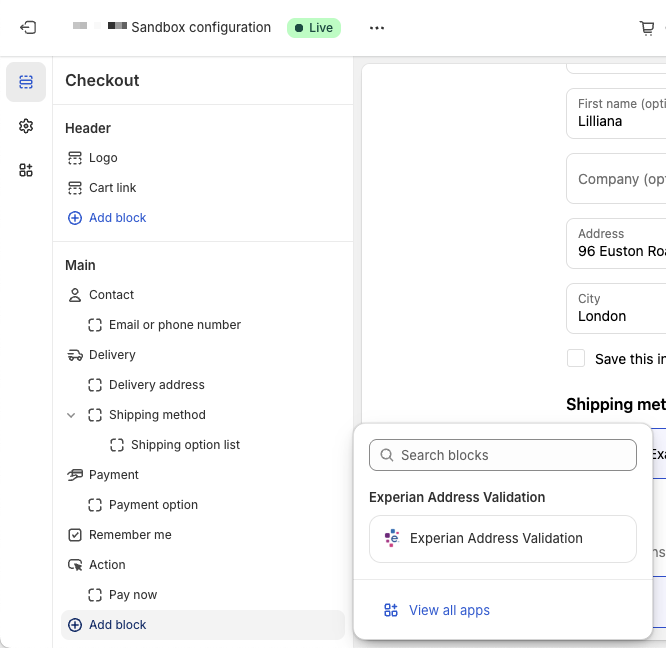
Select the Experian Address Validation block and it will automatically be added beneath the Delivery address.
Under Checkout behavior in the sidebar ensure Allow app to block checkout is enabled.
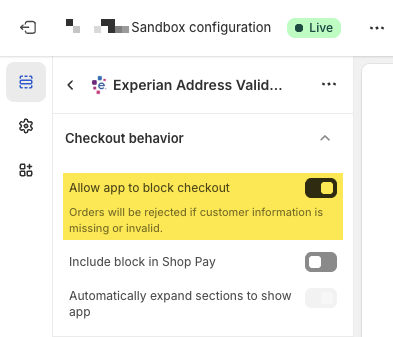
Ignore the Block settings as everything is controlled from the dedicated Settings app.
Click Save.
Select Thank you from the page selector in the top bar of the editor.
Within the Sections sidebar, scroll to the Main section of Thank you and click Add block.
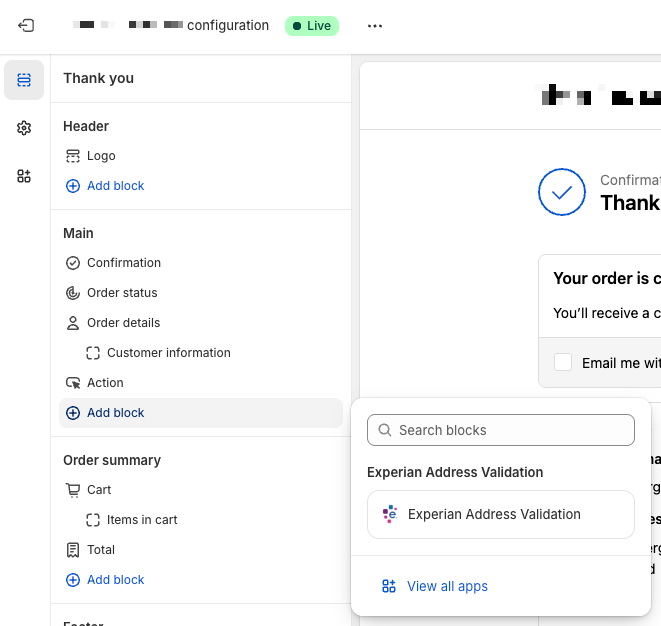
Select the Experian Address Validation block and it will automatically be added beneath the Confirmation message.
Ignore the Block settings as everything is controlled from the dedicated Settings app.
Click Save.
Full details on this feature, its limitations, how to configure it, and the additional costs can be found on the advanced address verification page.
You can add the Experian Email and Phone Validation block to your Checkout page (Shopify Plus plan only).
Select Checkout from the page selector in the top bar of the editor.
Within the Sections sidebar, scroll to the Main section of Checkout and click Add block.
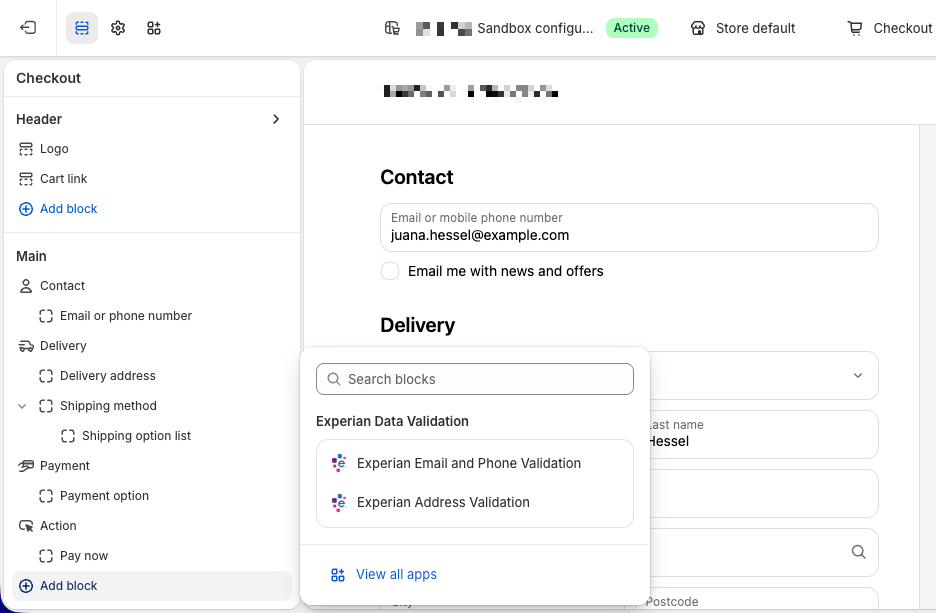
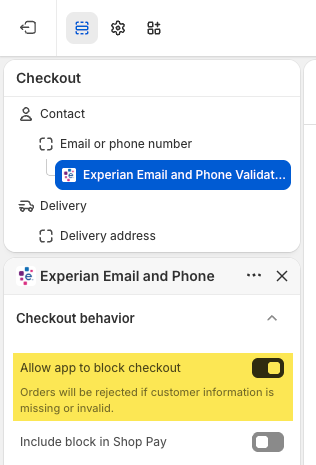
Select the Experian Email and Phone Validation block and it will automatically be added beneath the Email or phone number field.
Under Checkout behavior in the sidebar ensure Allow app to block checkout is enabled.
Click Save.
Full details on this feature can be found on the email and phone validation page.
The following configuration is carried out on Shopify's order details page:
From your Shopify admin, go to Orders.
Click any order number.
There you can configure one feature:
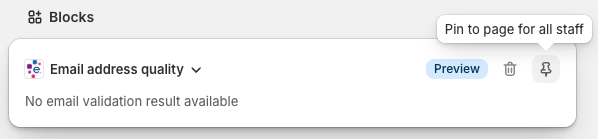
If you've enabled Email and Phone Validation on the Checkout page for your users, you can also add the option to pin a block to your order details page. This displays a quality assessment of the email address or phone number entered by the user.
Full details on this feature can be found on the email/phone quality page.